

USDYP Trading
Strategy Sandbox Guide
This guide walks you through your first trade on the Nunchi Yield Exchange (YEX) Strategy Sandbox, from opening the market page to seeing your order live in Open Orders.
The Demo environment is designed to feel like production: full charts, order book, and an active order ticket, while you trade with sandbox collateral (USDYP).
Quickstart
You’ll complete these steps in order:
Open the YEX Demo trading market
Connect your wallet and check eligibility
Mint USDYP (sandbox collateral)
Establish Connection (Fast Trading)
Configure a Limit (or Market) order
Approve Builder Fee
Submit the order and verify it in Open Orders
1. Open the YEX Demo market
When you land on a YEX Demo market, the full trading interface is visible, but trading is disabled until you connect and fund an account.
You will typically see:
Market header: MARK, ORACLE, 24h Volume, Open Interest, and Funding / Countdown
Price chart (timeframes + indicators)
Order book (Book / Trades)
Order ticket on the right (disabled)
Portfolio tray at the bottom prompting you to connect
2. Log in and connect your wallet
Click Connect (top right) or Connect Wallet to Check Eligibility.
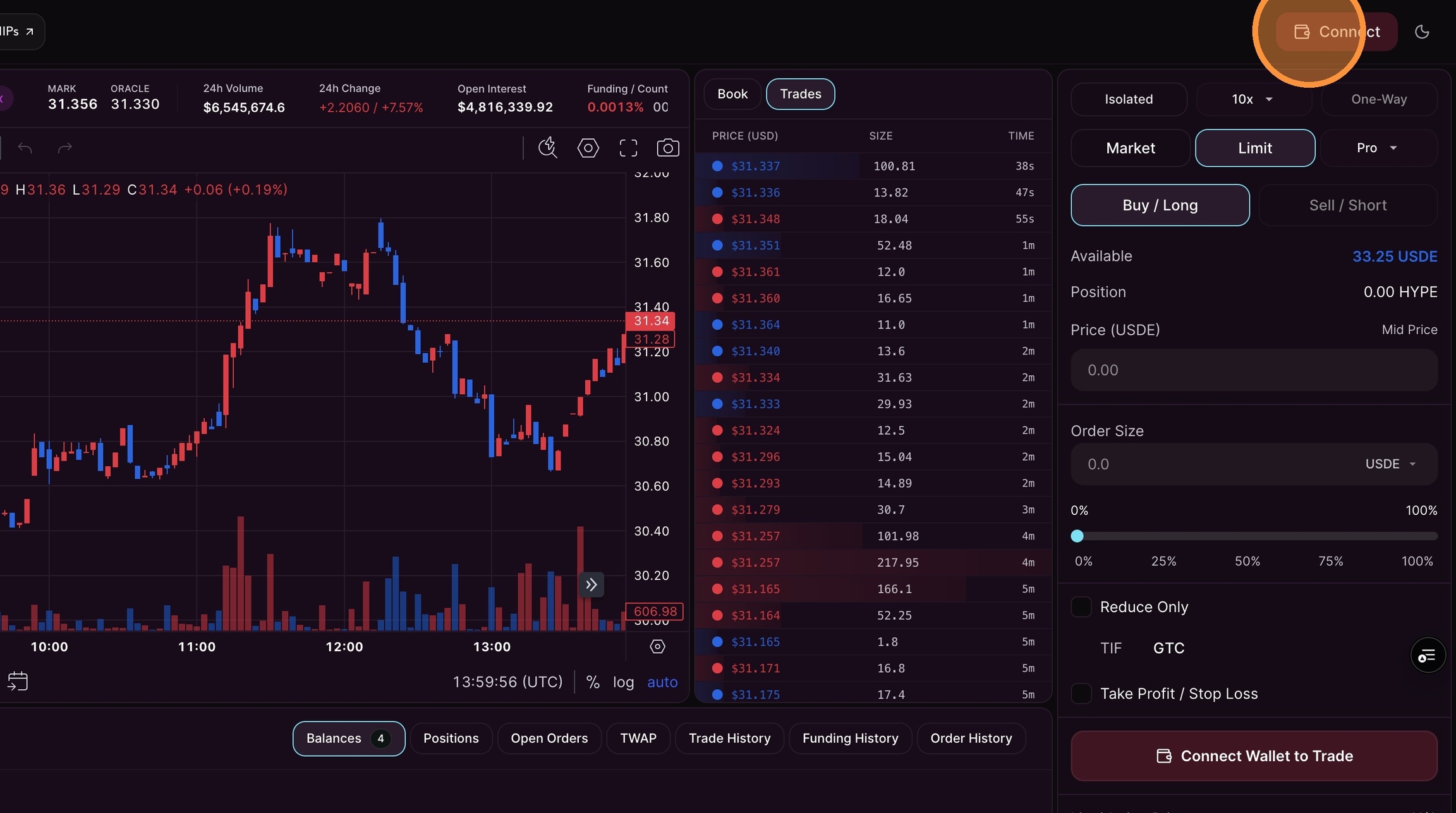
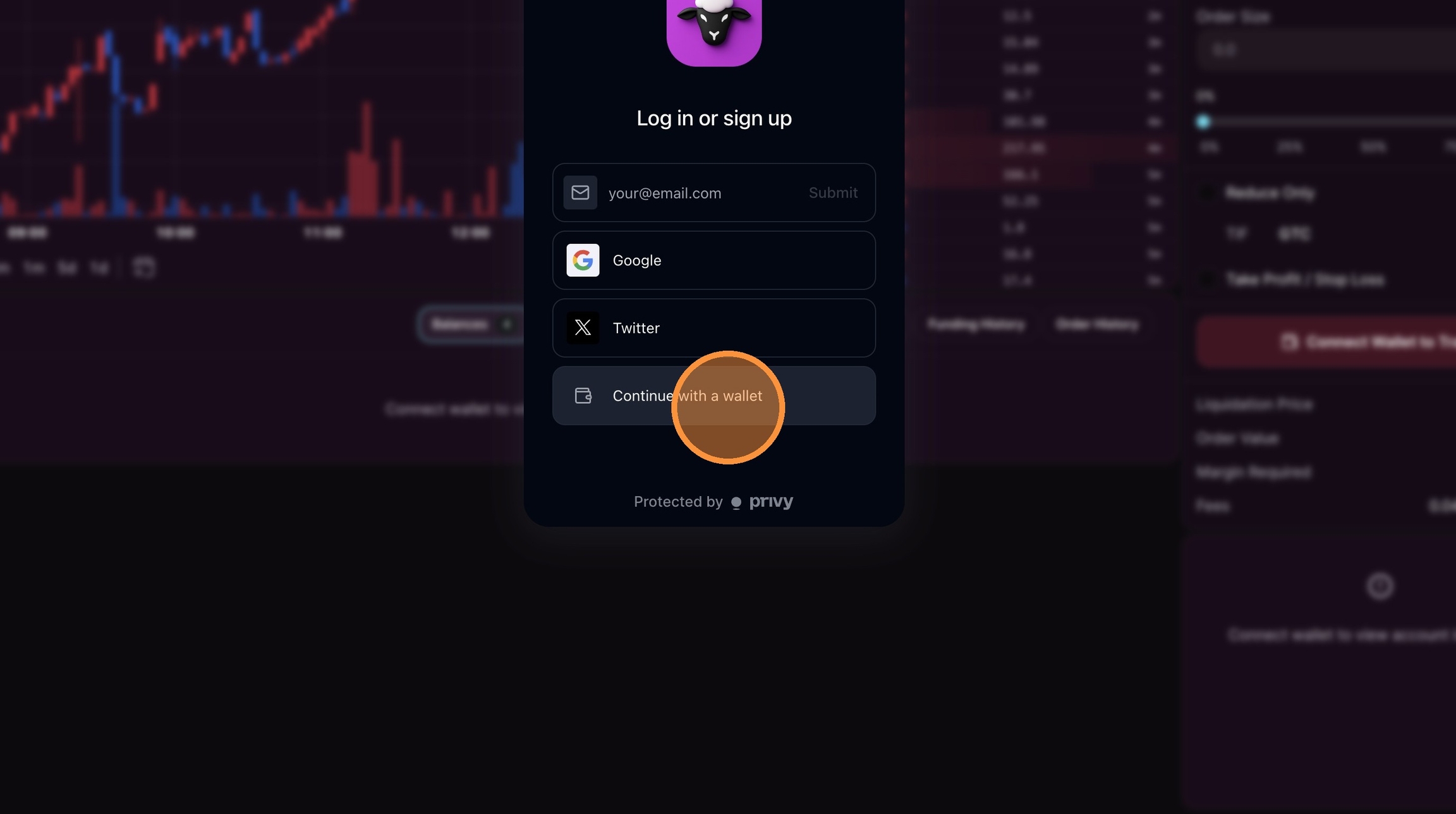
You’ll be prompted to log in through a secure authentication flow. Common options include:
Email
Google
Twitter
Continue with a wallet (recommended for trading)
Choose Continue with a wallet, then select your wallet (e.g., MetaMask).
Demo access and eligibility
YEX Demo may open with an access modal explaining the product is in beta and access is limited.
If you see the Market Access Threshold message, connect your wallet to check eligibility.
Tip: If you’re not eligible yet, you can still explore the UI, but trading actions will remain gated.
Approve the wallet connection
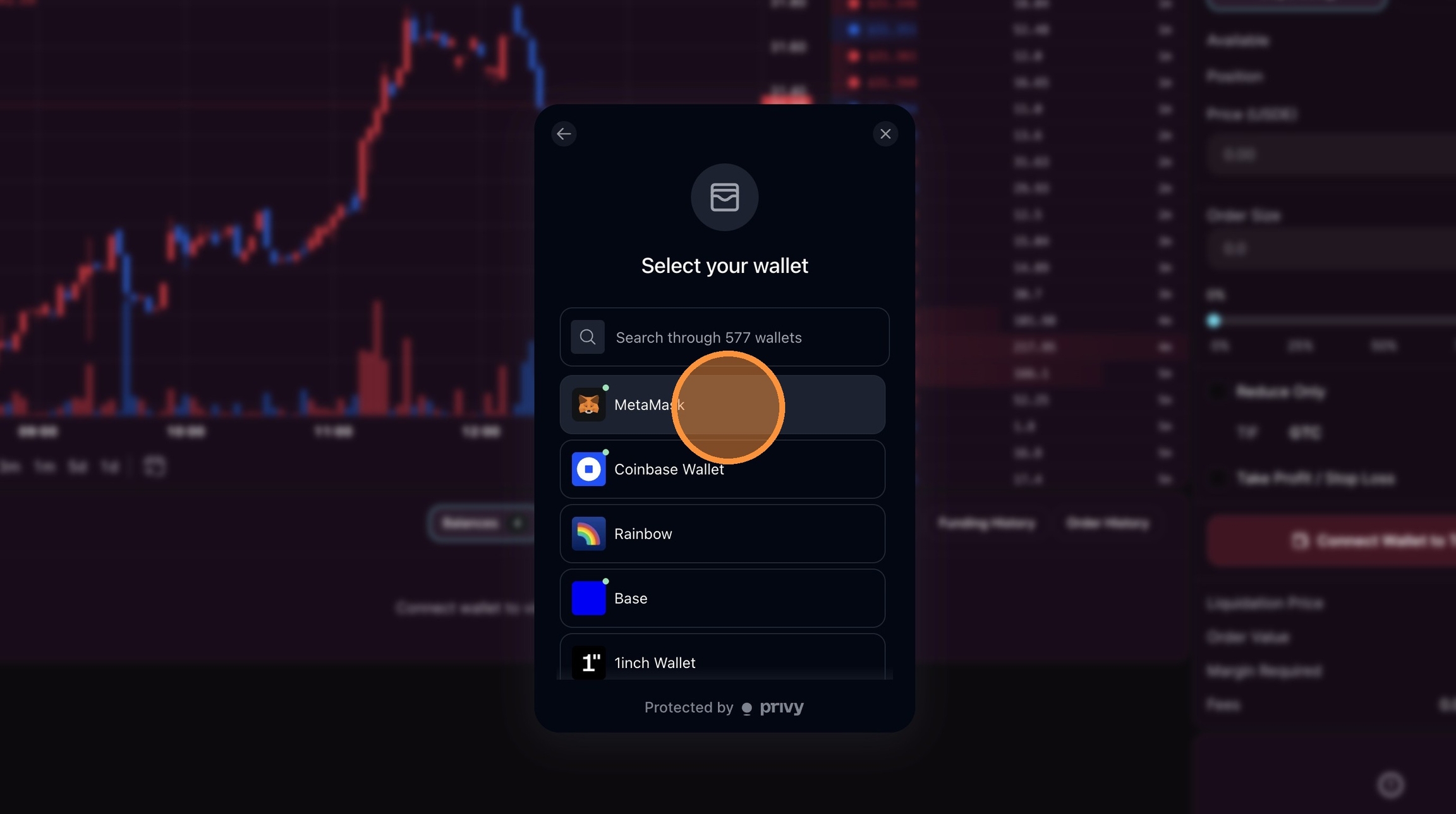
After selecting a wallet, you may see
a wallet selection list
a “waiting for wallet” screen
your wallet extension prompting you to unlock and approve connection
Approve the connection request in your wallet.
Once connected, you’re authenticated, but trading will still be disabled until you have sandbox collateral.
3. Mint sandbox collateral (USDYP)
In the order ticket, you’ll see:
Available shows
0.00 USDYPa Mint USDYP button
Click Mint USDYP to receive sandbox collateral.
Confirm your portfolio and account panels populate
After minting USDYP, several UI panels update immediately:
Portfolio → Balances shows USDYP:
Total balance
Available balance
USD value
Top-right header shows your account value (commonly around $5.00K in demo)
The Account panel appears on the right with:
Account Equity
Spot balance
Perps overview
At this stage, the order ticket typically shows Establish Connection.
4. Establish Connection
Click Establish Connection to enable fast, signature‑free trading.
The modal explains:
Fast Trading: place orders without signing every transaction
Secure Storage: a private key is stored locally in your browser
Account Abstraction: enables seamless order execution
Click Connect to proceed.
Fast Trading is designed to improve UX, but it changes how you authenticate orders.
Use Fast Trading only on devices you trust.
Avoid shared/public computers.
If you clear browser storage or switch browsers, you may need to re‑establish the connection.
5. Configure your first Limit order
Once Fast Trading is enabled, the order ticket becomes fully active.
A common first trade setup looks like:
Margin Mode: Isolated
Leverage: 3×
Order Type: Limit
Side: Buy/Long or Sell/Short
Price: set your limit price
Order Size: set your size
Optional: Take Profit / Stop Loss
As you configure the order, the preview panel should show key risk and cost info, such as
Liquidation price
Order value
Margin required
Fees
Tip: Treat this preview as your pre‑flight checklist. If liquidation is too close, reduce leverage or size.
6. Approve Builder Fee
Before your first trade, YEX requires a one-time Builder Fee approval.
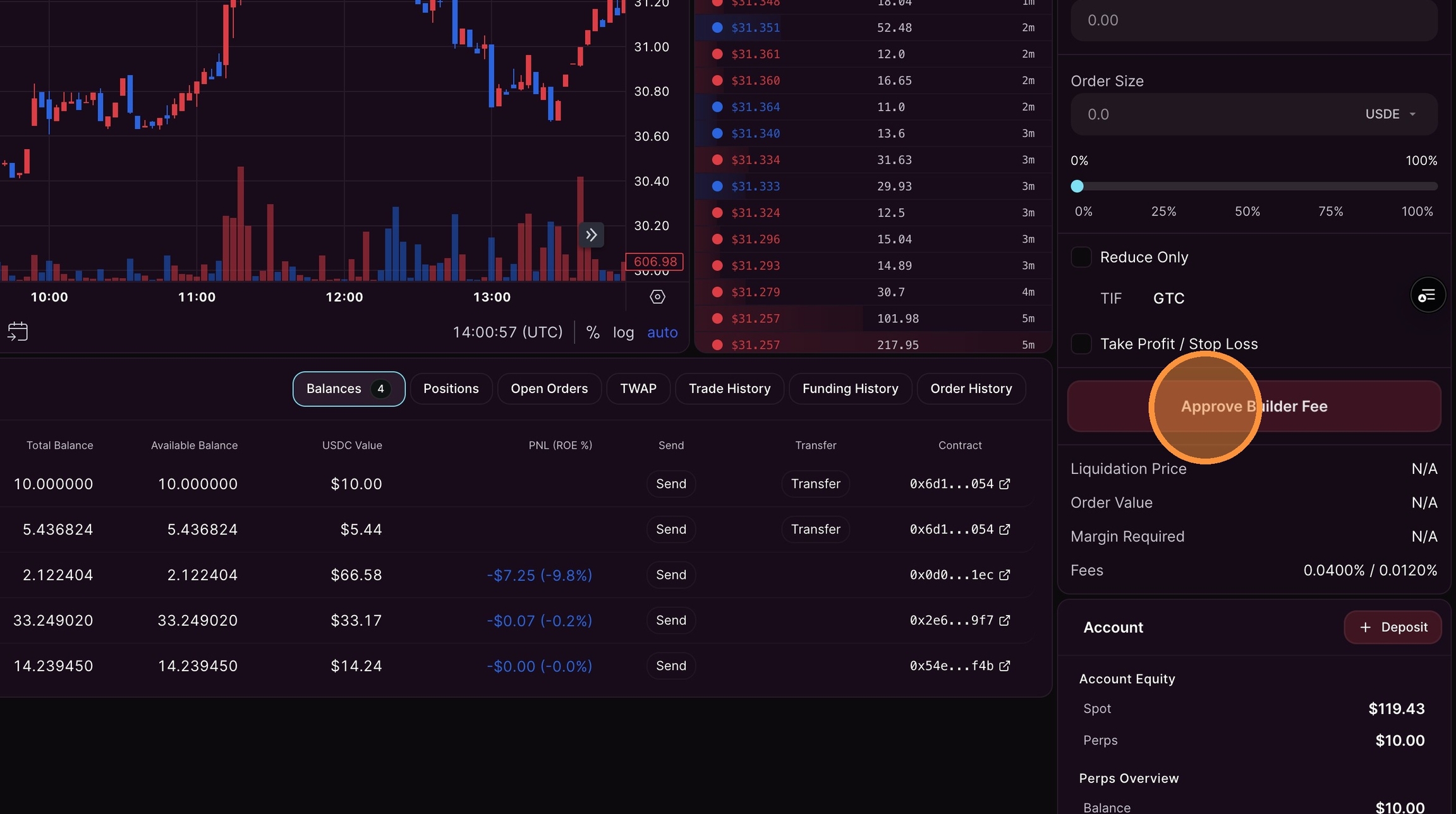
What happens:
Click Approve Builder Fee
Your wallet prompts you to approve
No trade is placed yet - this is authorization only
After approval, the main action button updates (Long Limit, Short Limit, or similar).
7. Submit the order
Click the main action button to submit the order (for example, Long Limit or Short Limit).
Confirmation behavior:
A success notification appears (often in the lower-right)
The order ticket resets
Your order is now live on the platform
View and manage your order in Open Orders
Navigate to Portfolio → Open Orders.
You should see:
Your primary order (entry)
Your Stop Loss (Reduce Only — closes the position if price moves against you)
Your Take Profit (Reduce Only — closes the position if price moves in your favor)
Key controls:
Cancel — cancel an individual order
Cancel All — remove all open orders
View — inspect order details
What happens next
From here:
When the limit order fills, the position appears in Positions
When TP or SL triggers, the position closes automatically
You can manually exit using Reduce Only + Market
Troubleshooting
Trading is still disabled
Ensure you’ve connected your wallet
Ensure you’ve minted USDYP
Ensure you’ve clicked Establish Connection
Ensure the Builder Fee is approved (first trade only)
I submitted an order but don’t see it
Check Portfolio → Open Orders
Confirm you’re on the correct market (US3M–USDYP)
Try refreshing after a few seconds
My TP/SL didn’t attach
Make sure TP/SL is enabled before submitting the order
Verify the TP/SL entries appear as separate lines in Open Orders
Sandbox is for optimization
Sandbox collateral (USDYP) is simulated. Use collateral to optimize
sizing and leverage discipline
working limit orders
attaching TP/SL
reading the order book and execution behavior
When you’re ready, the same workflow carries over into live markets with real collateral.
Last updated
Was this helpful?